Category Overview Page

How to Create a Category Overview Page
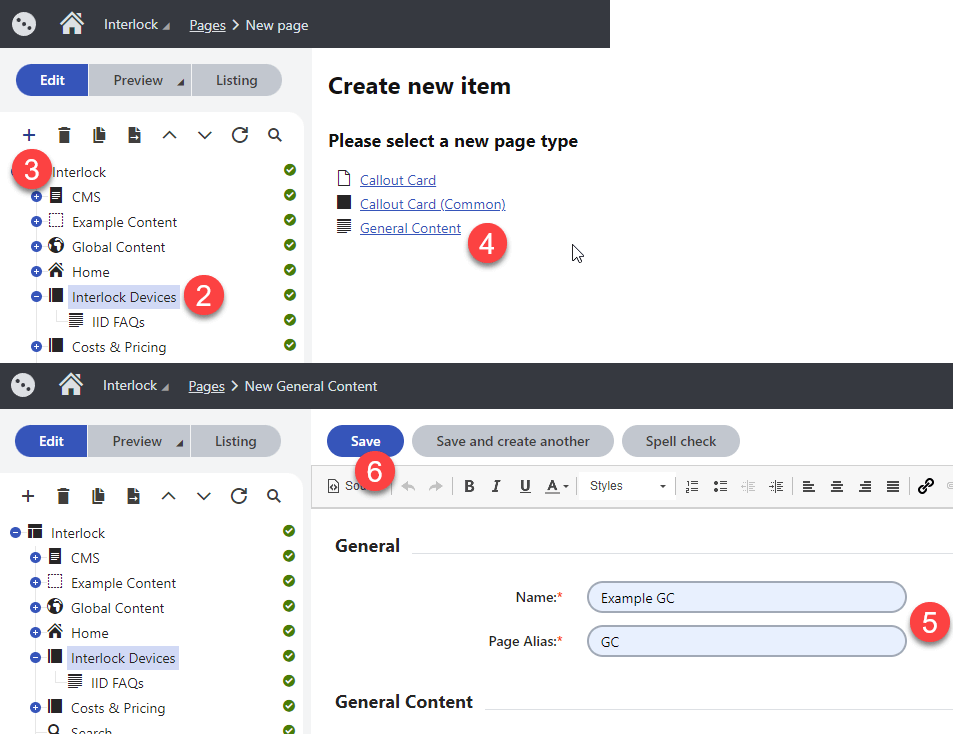
- From the Applications menu, navigate to the Pages interface under Content Management
- Find the position on the tree and select the parent
- Click on the + icon
- Find and click on Category Listing
- Fill out the required fields
- Click on the Save button
- Click on Preview and then on Open in a new tab (Optional)
- Click on the Publish button
How to Update a Category Overview Page
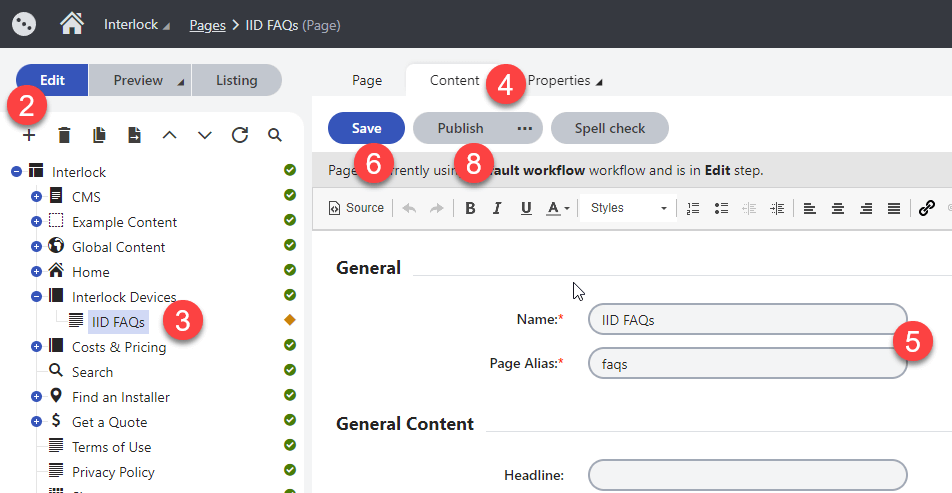
- From the Applications menu, navigate to the Pages interface under Content Management
- Click on the Edit button or make sure it is selected
- Find and select the Category Overview page of your preference from the tree
- Click on the Content tab or make sure it is selected or Click on Page tab to use page builder
- Scroll down and update copy
- Click on the Save button
- Click on Preview and then on Open in a new tab (Optional)
- Click on the Publish button
Note: The cards will automatically show up on the category listing page once the user creates child pages underneath.
How to Update Card Thumbnail or Title
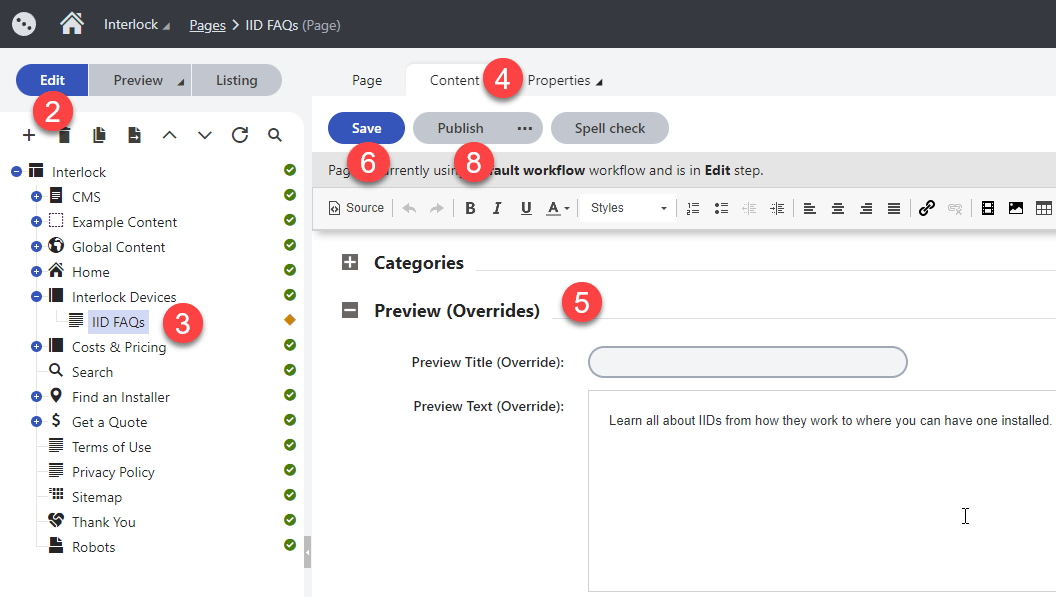
- From the Applications menu, navigate to the Pages interface under Content Management
- Click on the Edit button or make sure it is selected
- Find and expand the Category Page of your preference from the tree.
- Click on the Content tab or make sure it is selected
- Scroll down and find Preview (Overrides)
- To override the card title, fill out the Preview Title (Override) field
- To set up a preview snippet, fill out the Preview Text (Override) field
- To override the card image, select an image in the Preview Image (Override) field
- Click on the Save button
- Click on Preview and then on Open in a new tab (Optional)
- Click on the Publish button