Homepage

Home Page Type Icon
Table of Contents:
- How to Navigate to the Homepage in the CMS
- How to Update Hero Copy
- How to Update Hero Image
- How to Update the "Ignition Interlock Device (IID)" Section
- How to Update "The Process" Section
- How to Update the Provider Section Headline and Description
- How to Add a New Card to the Provider Carousel
- How to Update the Provider Carousel
- How to Update the "IID Installation Near You" Section

- Click on Applications icon in the top left
- Click on Content Management
- Click on Pages
- Click on the Edit button or make sure it is selected
- Find and click on Home
How to Update Hero Copy
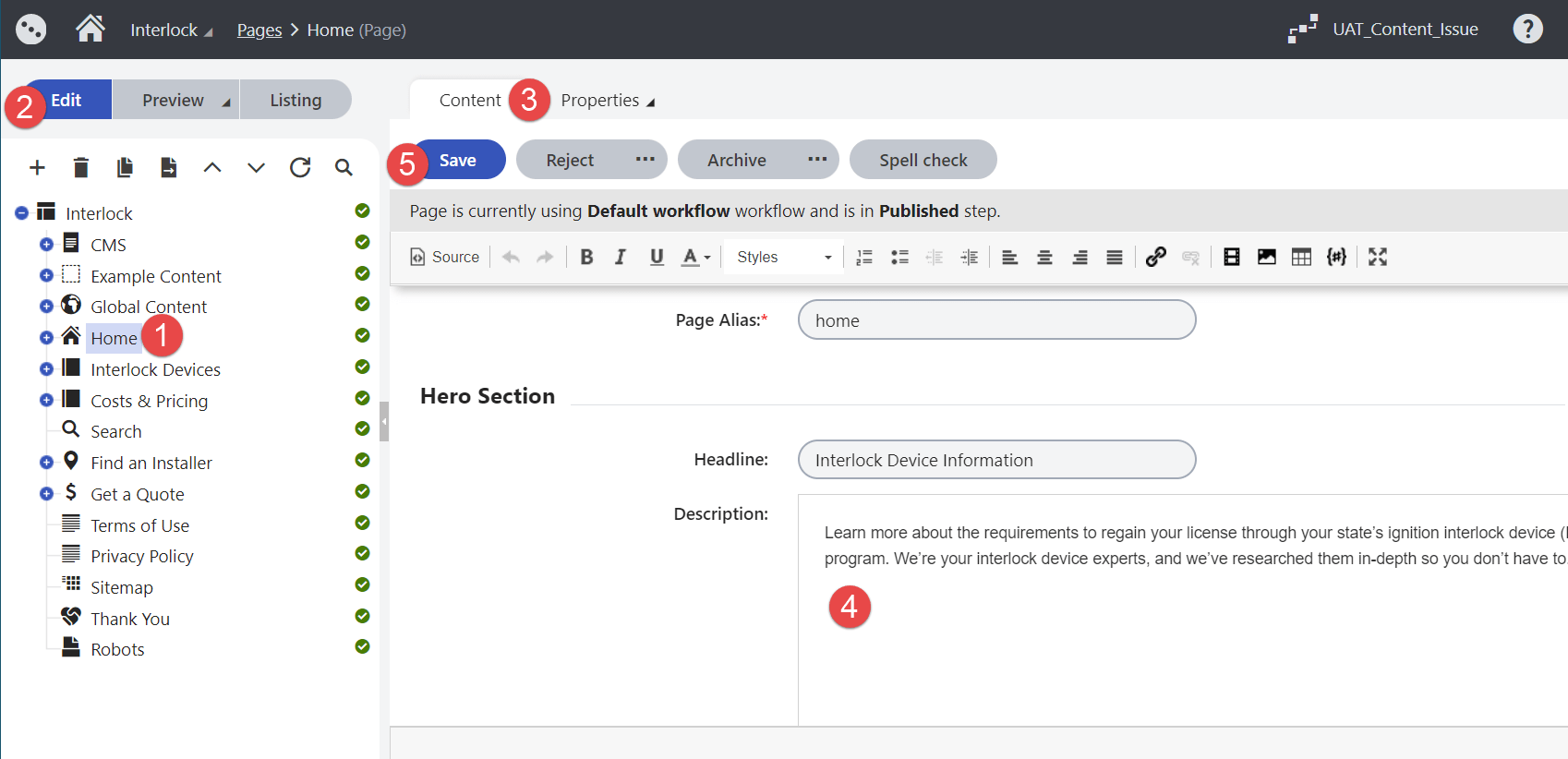
- Navigate to the homepage within the Pages interface
- Click on Edit button or make sure it is selected
- Click on Content tab or make sure it is selected
- Scroll down to the Hero Section and update copy
- Click on Save
- Click on Preview and then on Open in a new tab (Optional)
- Click on the Publish button
How to Update Hero Image
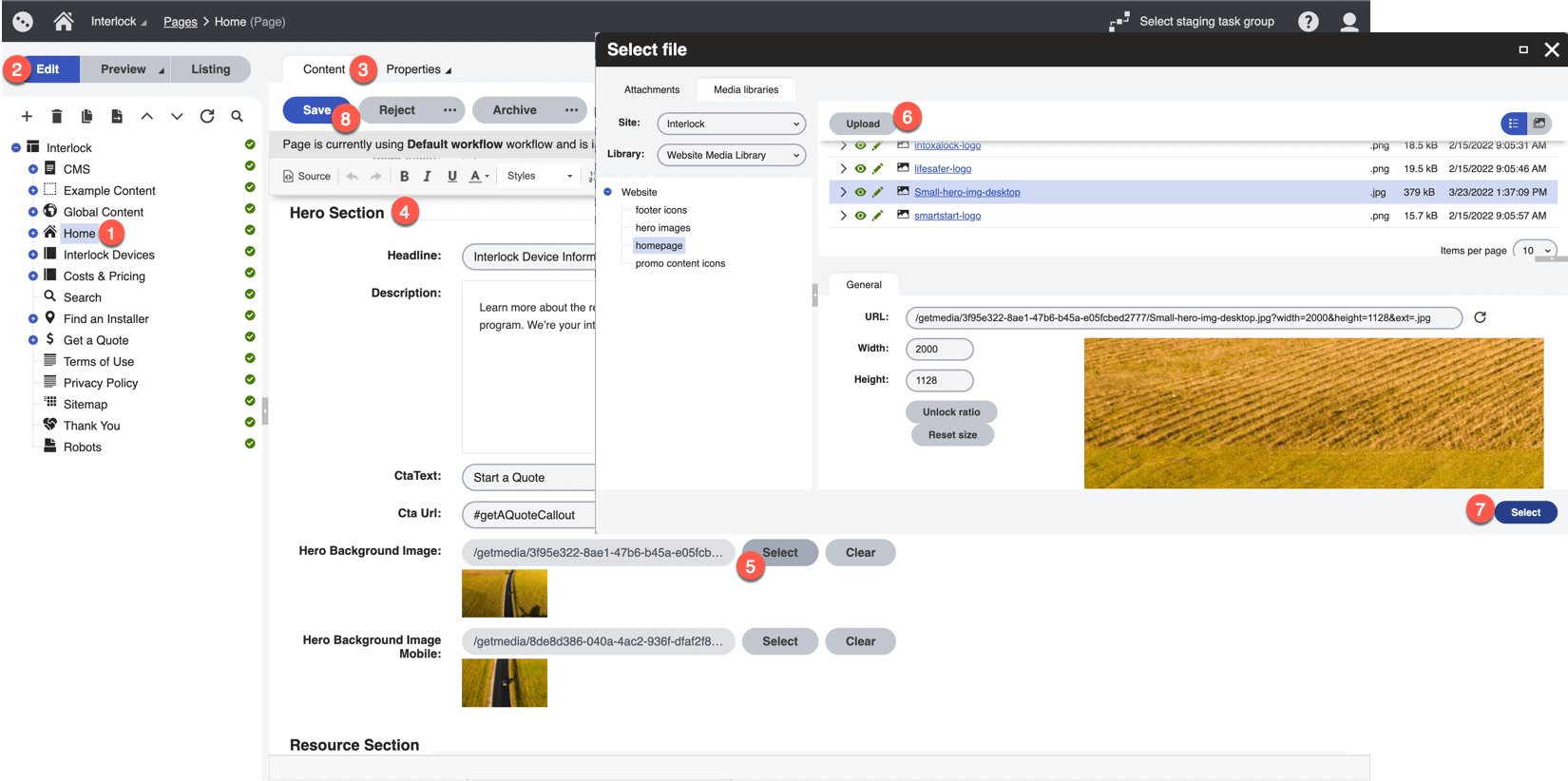
- Navigate to the homepage within the Pages interface
- Click on Edit button or make sure it is selected
- Click on Content tab or make sure it is selected
- Scroll down to the Hero Section
- Find and update the Hero Background Image and/or the Hero Background Image Mobile
- Click on Save
- Click on Preview and then on Open in a new tab (Optional)
- Click on the Publish button
How to Update the "Ignition Interlock Device (IID)" Section
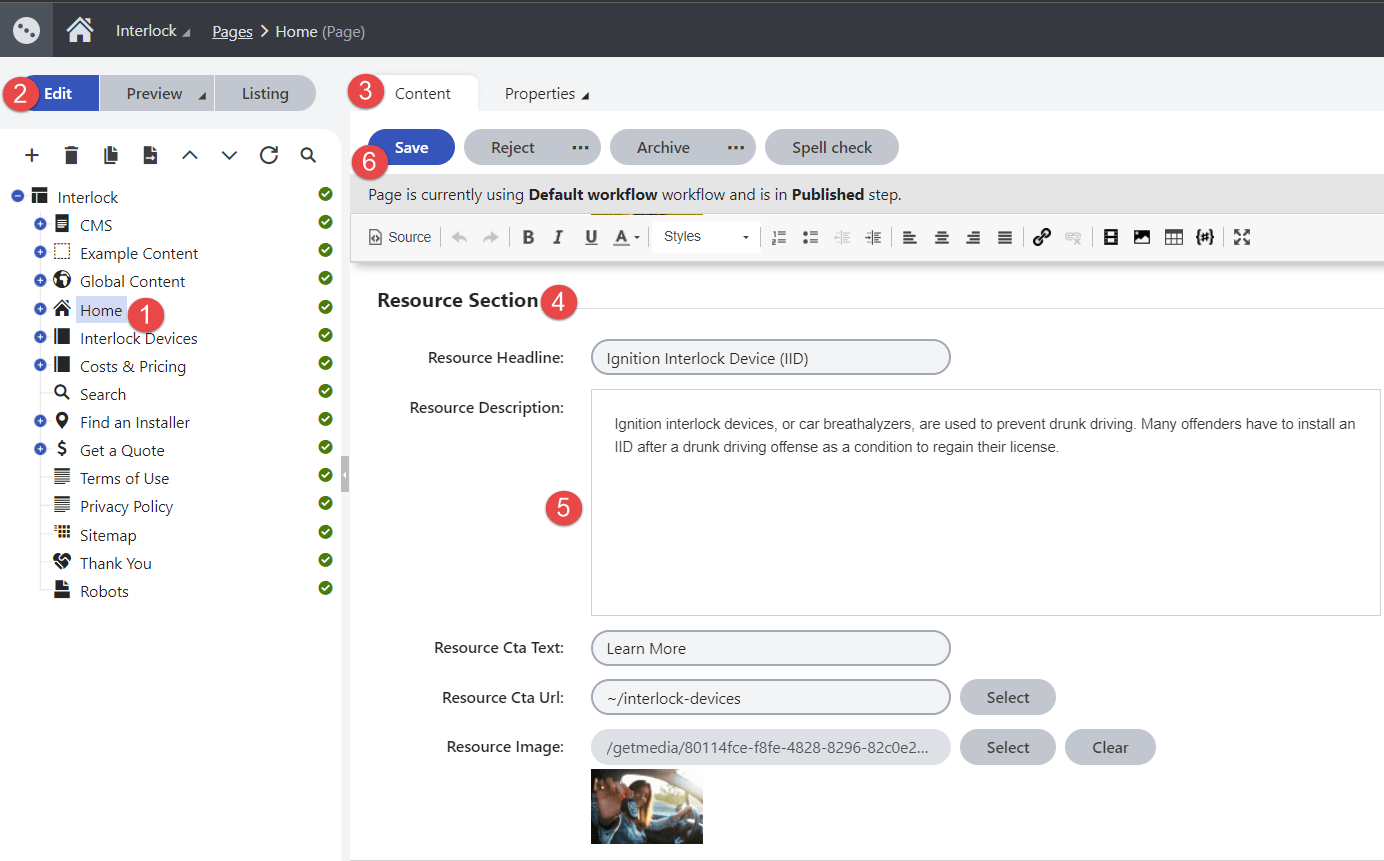
- Navigate to the homepage within the Pages interface
- Click on Edit button or make sure it is selected
- Click on Content tab or make sure it is selected
- Scroll down to the Resource Section
- Update the copy, image, or CTA
- Click on Save
- Click on Preview and then on Open in a new tab (Optional)
- Click on the Publish button
How to Update "The Process" Section
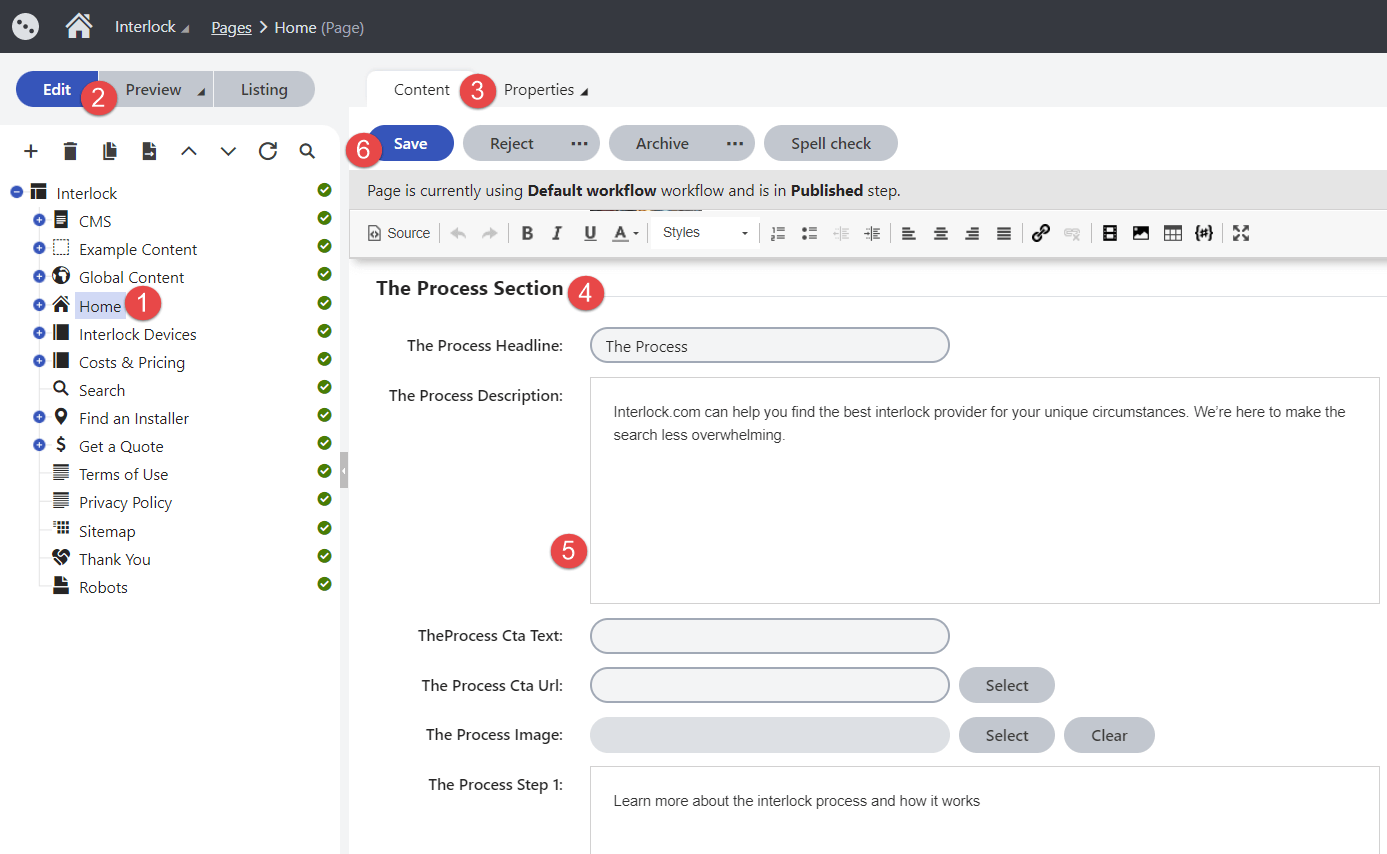
- Navigate to the homepage within the Pages interface
- Click on Edit button or make sure it is selected
- Click on Content tab or make sure it is selected
- Scroll down to The Process Section
- Update the copy for the headline, description, or steps
- Click on Save
- Click on Preview and then on Open in a new tab (Optional)
- Click on the Publish button
How to Update the Provider Section Headline and Description
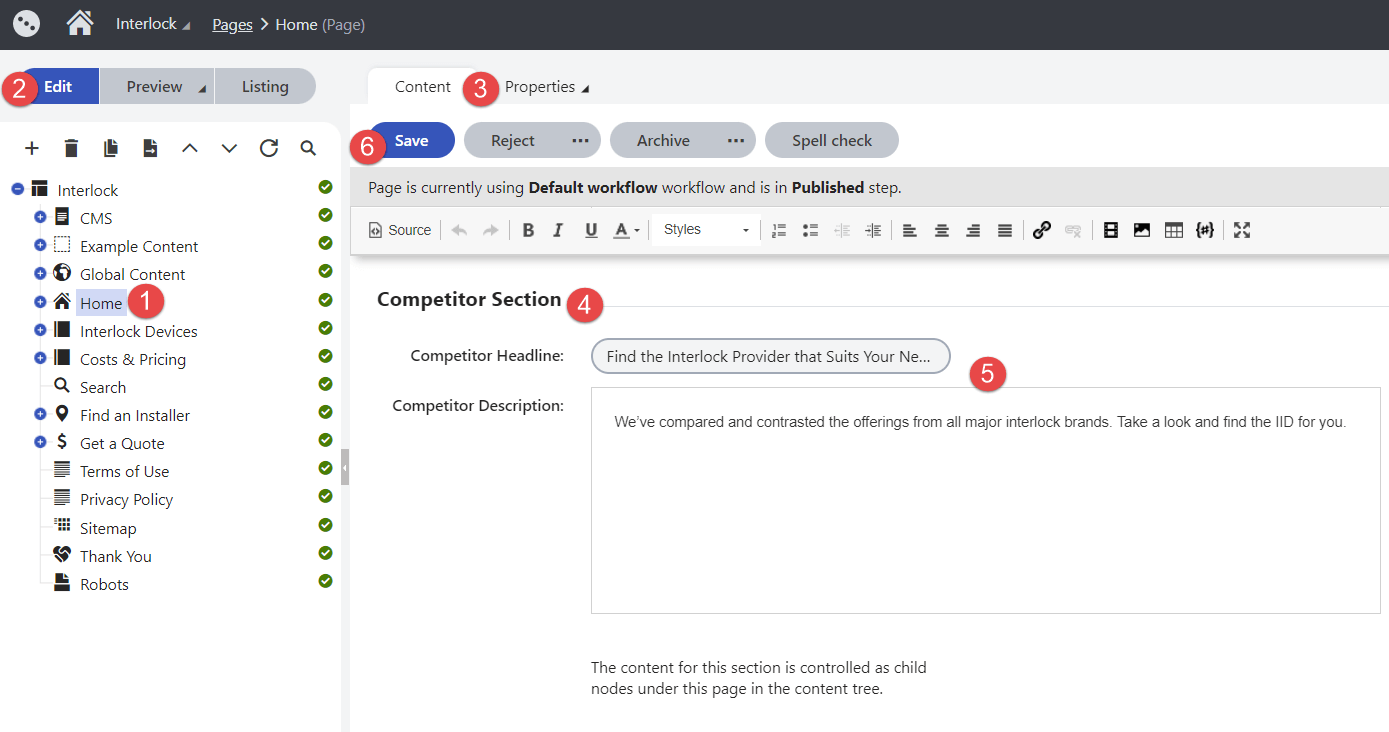
- Navigate to the homepage within the Pages interface
- Click on Edit button or make sure it is selected
- Click on Content tab or make sure it is selected
- Scroll down to the Competitor Section
- Update the copy for the headline or description
- Click on Save
- Click on Preview and then on Open in a new tab (Optional)
- Click on the Publish button
Note: The content for the carousel is housed in templates nested under the homepage page in the content tree. See the instructions below to update.
How to Add a New Card to the Provider Carousel

- Navigate to the homepage within the Pages interface
- Click on the + icon next to Home in the content tree
- Click on the Competitors folder
- Click on the + icon below the Edit button
- Select Competitor Card
- Fill out the fields under the General, Competitor, and Callout Card sections
- Click on Save
- Click on the Publish button
Note: Updates to the carousel cannot be previewed from this location. To see the changes before publishing, navigate to the homepage, click on Preview and then on Open in a new tab.
How to Update the Provider Carousel

- Navigate to the homepage within the Pages interface
- Click on the + icon next to Home in the content tree
- Click on the + icon next to Competitors to display each card in the content tree
- Make sure the Edit view is selected and you are within the Content tab
- Find and select a provider to update (e.g. Interlock)
- Scroll down the Competitor section the review count and score or scroll down to the Callout Card section to update the provider name and logo
- Click on Save
- Click on the Publish button
Note: Updates to the carousel cannot be previewed from this location. To see the changes before publishing, navigate to the homepage, click on Preview and then on Open in a new tab.
How to Update the "IID Installation Near You" Section
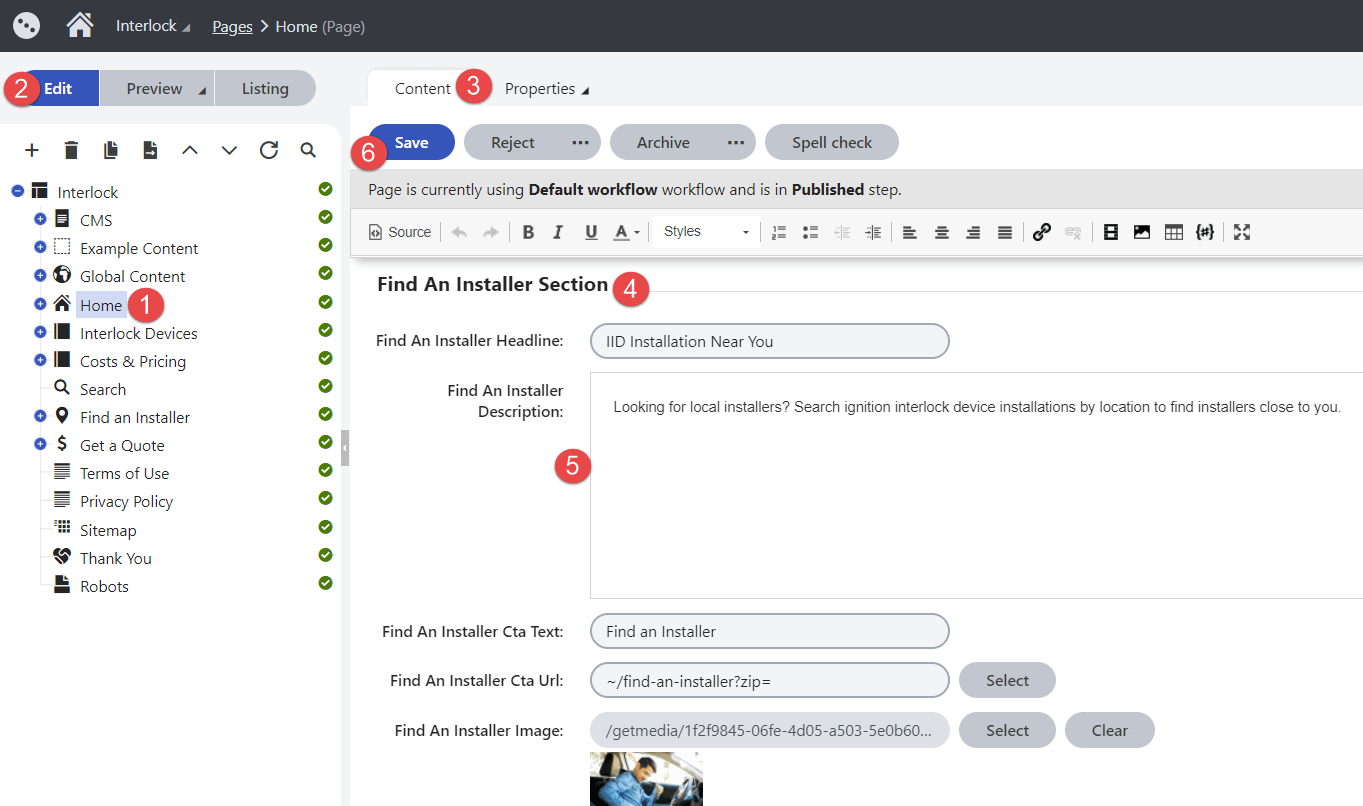
- Navigate to the homepage within the Pages interface
- Click on Edit button or make sure it is selected
- Click on Content tab or make sure it is selected
- Scroll down to the Find An Installer Section
- Update the copy or image
- Click on Save
- Click on Preview and then on Open in a new tab (Optional)
- Click on the Publish button